← All templates

5 Day Challenge Product Launch + Book Order Sales Funnel (8 Pages)

Rated 5.0 out of 5

5 Day Challenge Product Launch + Book Order Sales Funnel (8 Pages)

8 pages 0 emails

- **5 Day Challenge Product Launch + Book Order Sales Funnel** - * Generate a targeted list of qualified leads with this eye-catching 5 Day Challenge optin page designed to register people for your new product launch sequence... * Introduce yourself, your product, your company, and your vision over the course of 5 days with individual presentation pages that contain a download button for your new leads to get daily access to new content that will further engage them each day in your final offer... * Give away your new book (or other physical product) using the Free + Shipping order form page which gives people access to the product you have been building up excitement about through the 5 Day Challenge... **8 Pages Total / ALL PAGES 100% MOBILE OPTIMIZED** - Common Search Terms: Book Funnel, product launch, challenge, 5 day product launch, sales funnel, product funnel, book launch, 2 step
  • sales
  • optin
  • Trip-Wire
  • Free Book

9 Screenshots

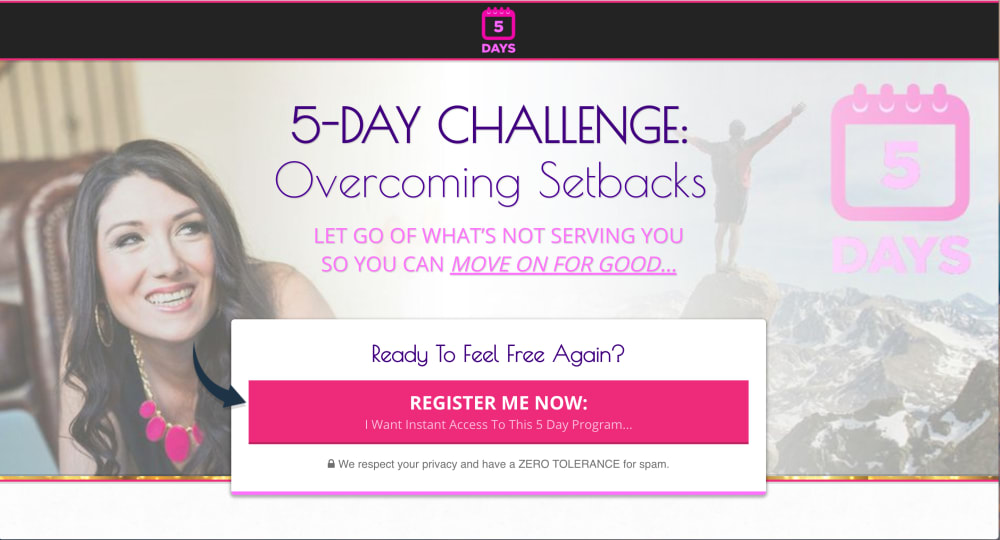
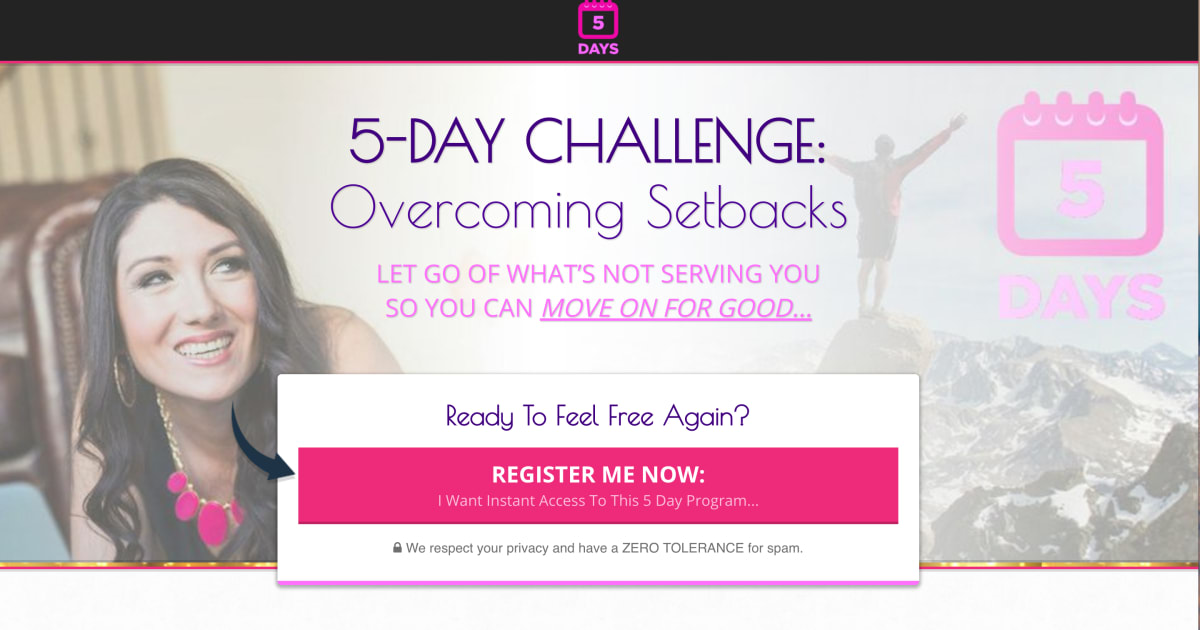
5 Day Challenge Optin Page

5 Day Challenge Optin Page

* **CLICK IMAGE TO PREVIEW PAGE**
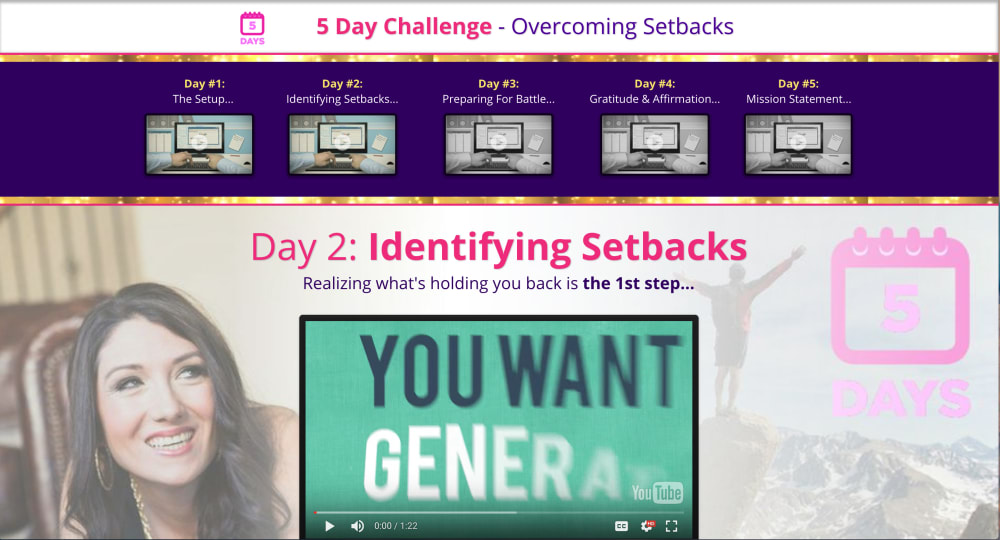
5 Day Challenge - Day 2

5 Day Challenge - Day 2

* **CLICK IMAGE TO PREVIEW PAGE**
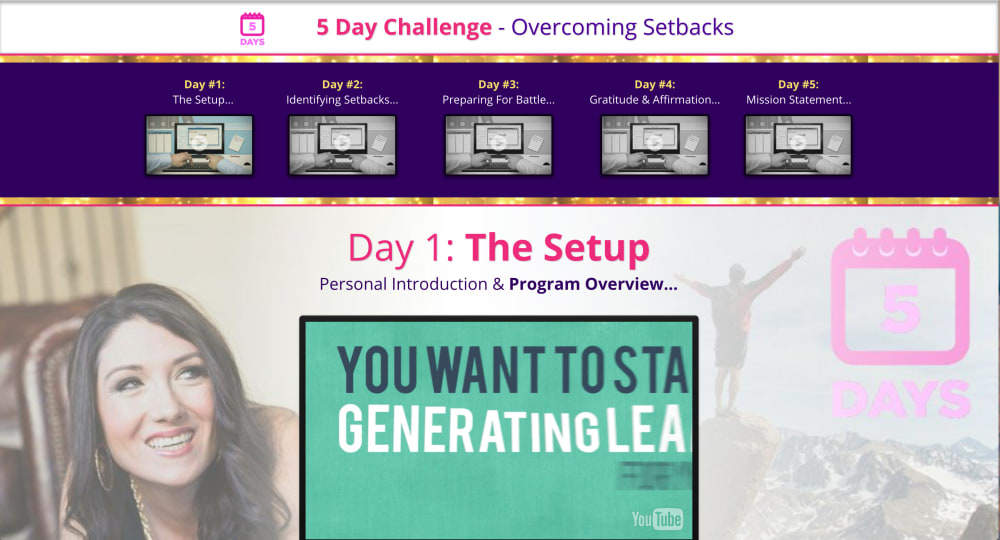
5 Day Challenge - Day 1

5 Day Challenge - Day 1

* **CLICK IMAGE TO PREVIEW PAGE**
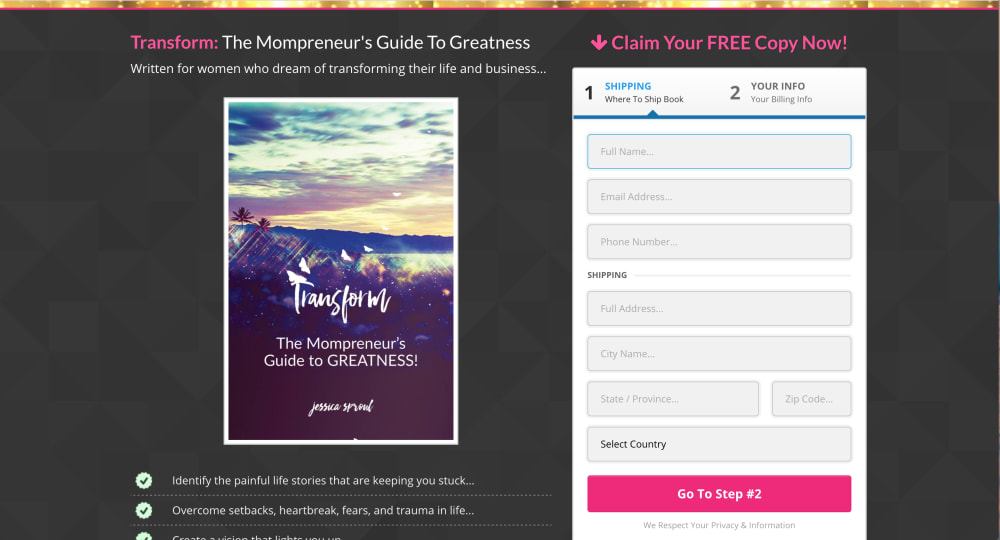
5 Day Challenge Book Order Page

5 Day Challenge Book Order Page

* **CLICK IMAGE TO PREVIEW PAGE**
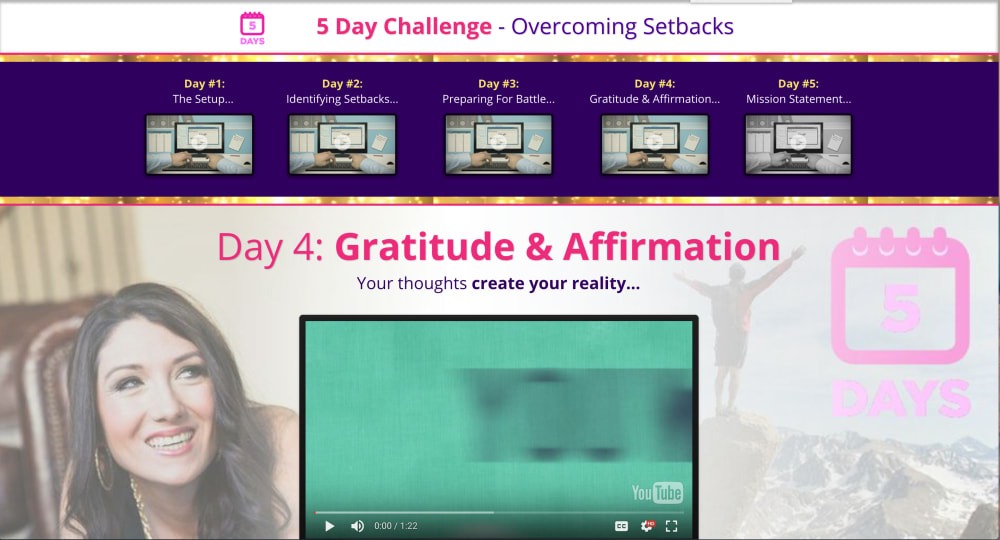
5 Day Challenge - Day 4

5 Day Challenge - Day 4

* **CLICK IMAGE TO PREVIEW PAGE**
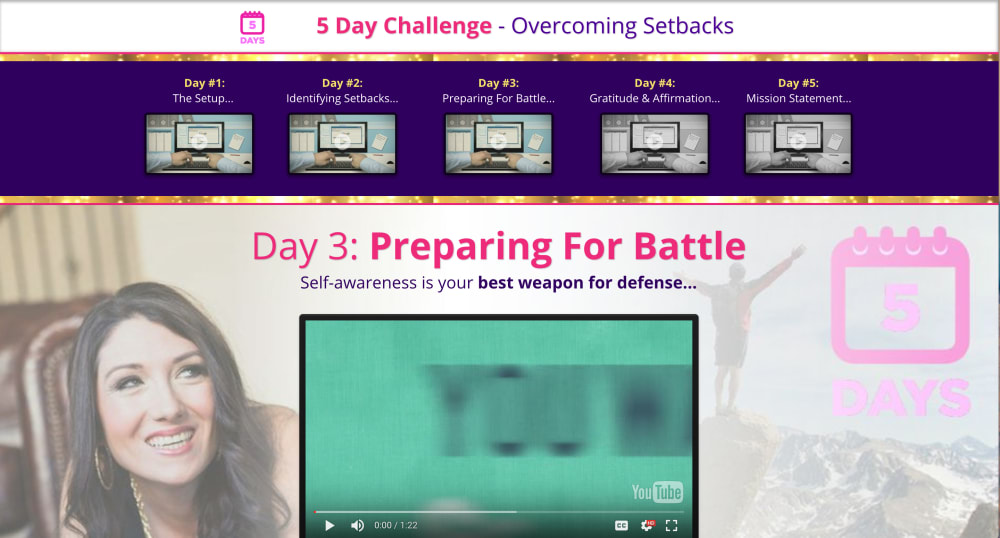
5 Day Challenge - Day 3

5 Day Challenge - Day 3

* **CLICK IMAGE TO PREVIEW PAGE**
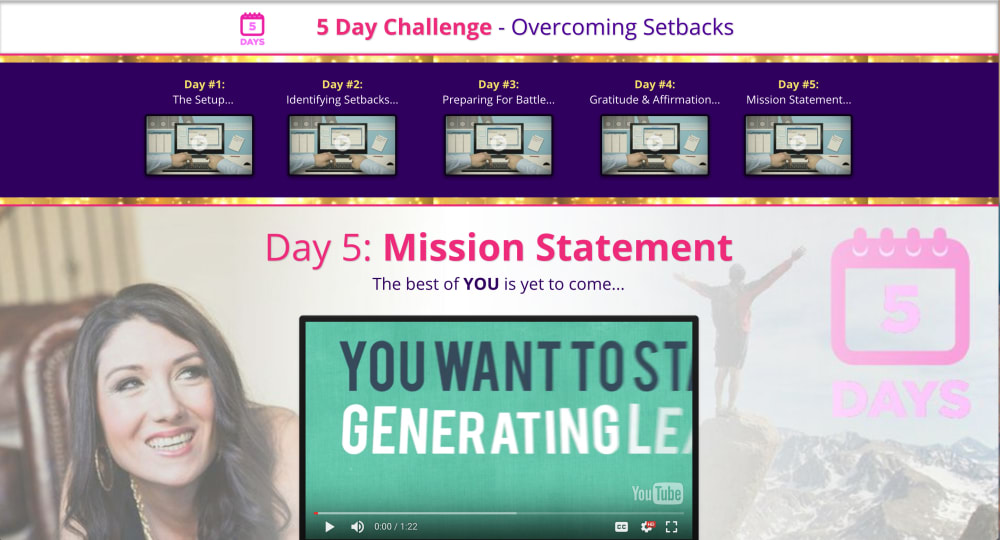
5 Day Challenge - Day 5

5 Day Challenge - Day 5

* **CLICK IMAGE TO PREVIEW PAGE**
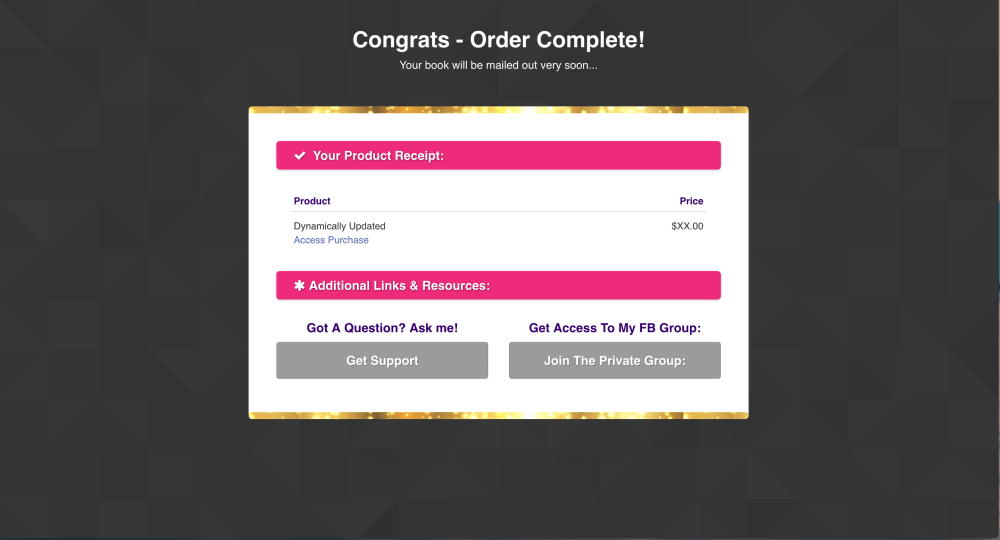
5 Day Challenge Order Confirmation Page

5 Day Challenge Order Confirmation Page

* **CLICK IMAGE TO PREVIEW PAGE**
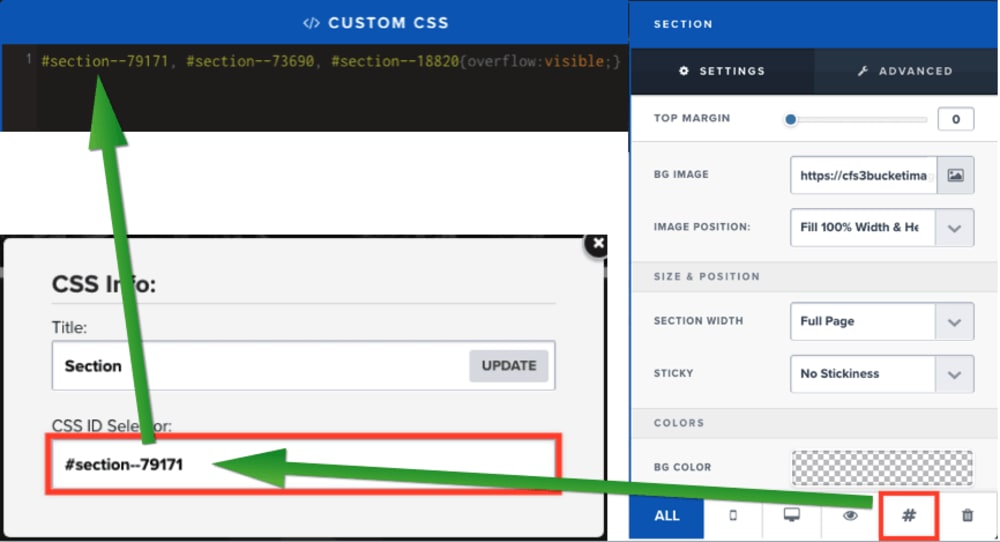
Custom CSS Code:

Custom CSS Code:

This funnel contains custom CSS code that allows the overflow of a lower section to be visible over the top of another section. You can edit this code to reflect the corresponding section ID found in the CSS settings of the section that you wish to display on top by removing the existing section ID in the CSS settings of the page editor, and pasting in the new section ID in it's place while separating multiple sections by commas as shown in this screenshot. **Remember to save the page editor after making this change to allow the visual effect to show on the live version of the page...